Inviting and Managing Team Members
Add team members to your DailyStak account so your staff can help manage patients, orders, and protocols.
Getting There
- Click Users in the sidebar under Settings.
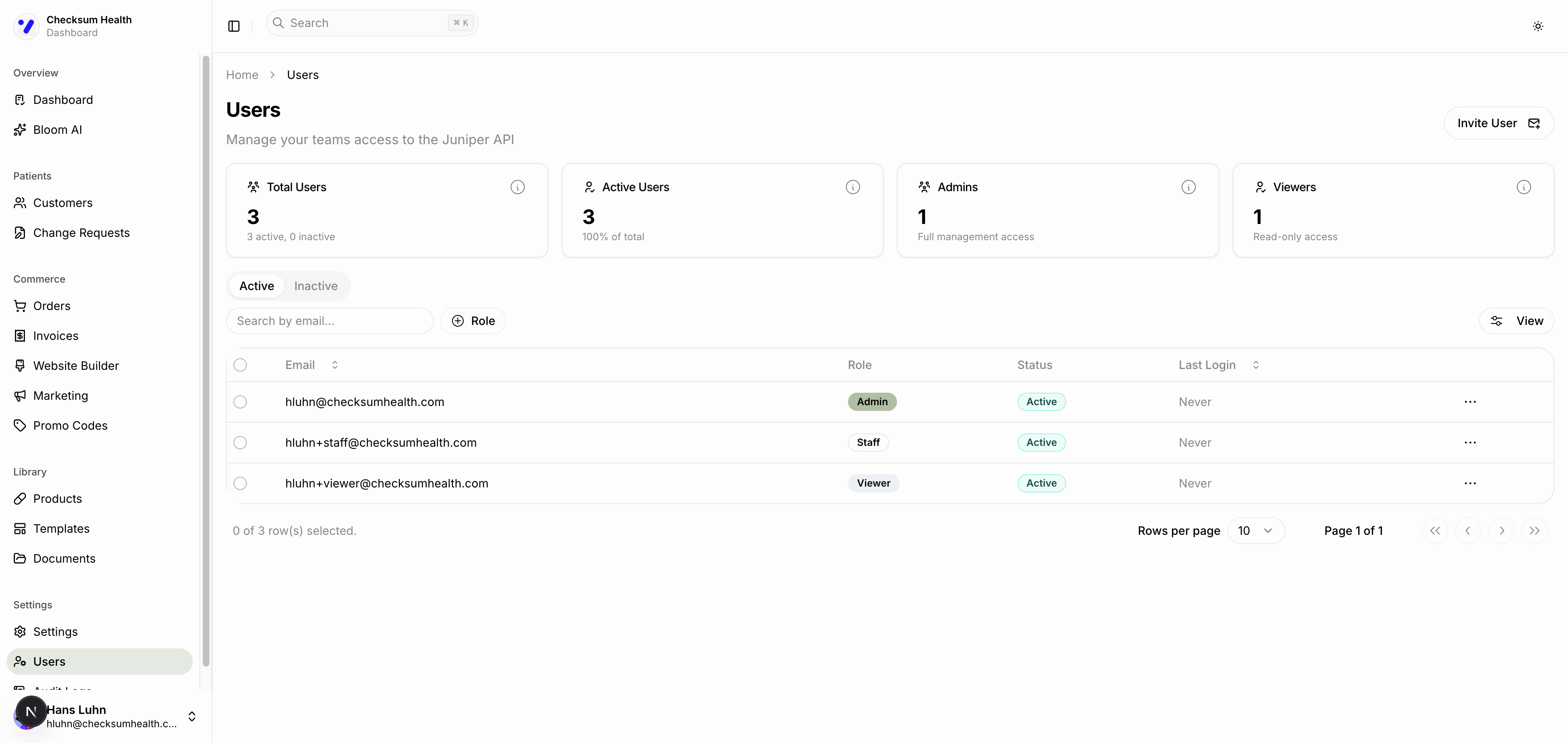
Overview Cards
At the top of the page, summary cards show:
- Total Users — All users on your account.
- Active Users — Currently enabled users.
- Admins — Users with full management access.
- Viewers — Users with read-only access.
Inviting a Team Member
- Click the Invite User button.
- Enter the team member's email address.
- Select a role: Admin, Staff, or Viewer.
- Click Send Invite.
The team member will receive an email invitation to create their account.
Managing Users
The user table shows: Email, Role, Status, and Last Login.
From the three-dot menu (⋮) on any user row, you can:
- Change role — Upgrade or downgrade their access level.
- Deactivate — Disable their account (they can no longer log in).
- Reactivate — Re-enable a deactivated account.
Use the Active and Inactive tabs to filter the user list.
caution
Only Admin users can manage team members. Staff and Viewer roles do not have access to the Users page.