Managing Notification Preferences
Control which emails your patients receive for orders, subscriptions, and protocol changes.
Getting There
- Click Settings in the sidebar.
- Select Notifications from the settings navigation.
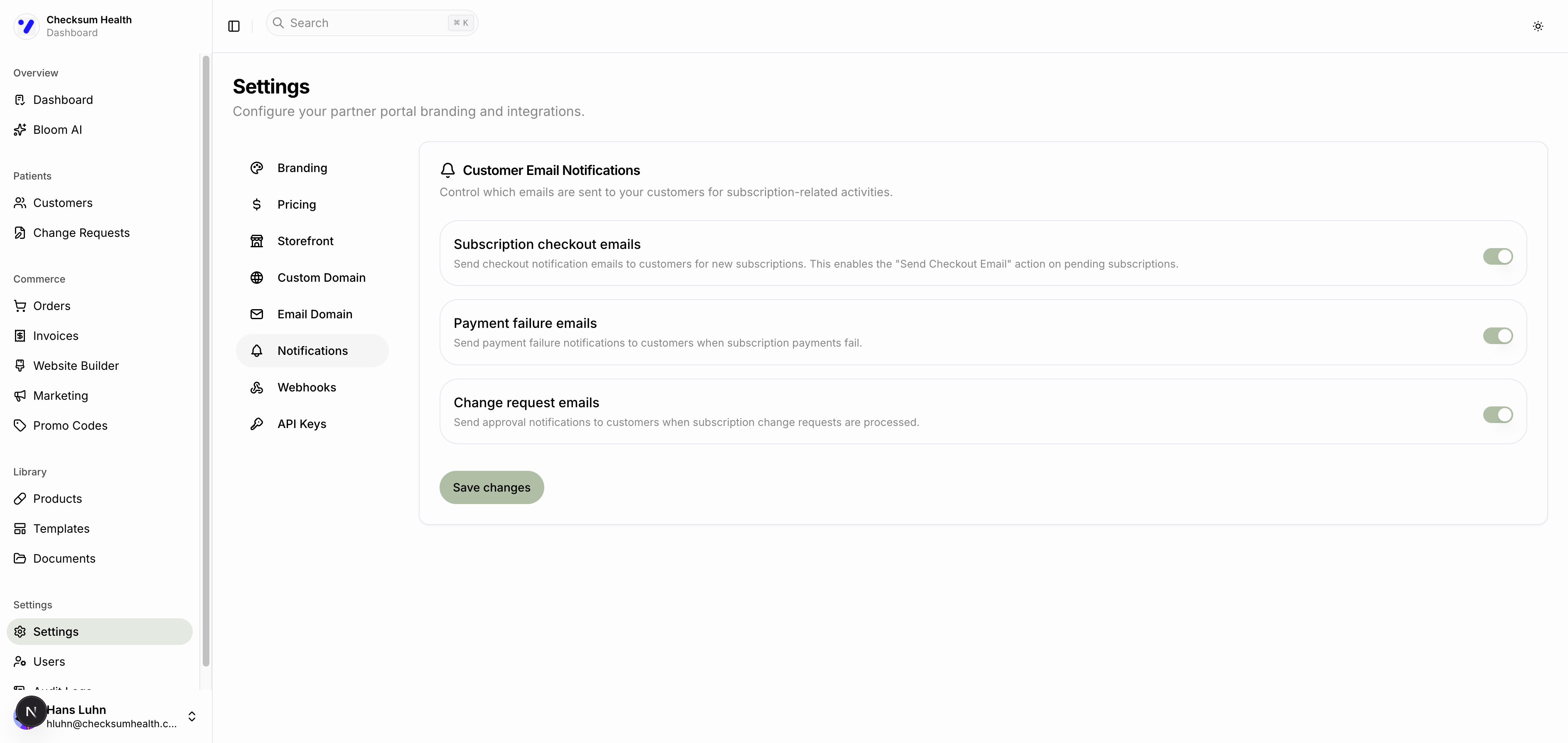
Master Switch
| Notification | Description | Default |
|---|---|---|
| Send emails to customers | Controls every email sent to your patients on your behalf, including marketing campaigns. While it is off, nothing is sent. | On when set during onboarding. Off for accounts that never set it, until you turn it on here. |
The link patients use to sign in to their account is delivered by email. While Send emails to customers is off, no sign-in links are sent, so patients cannot access their account.
Email Toggles
The switches below only apply while Send emails to customers is on.
Orders
| Notification | Description | Default |
|---|---|---|
| Checkout link emails | Sends checkout links to patients when you create an order or subscription. This enables the "Send Checkout Email" action on a protocol. | On |
| Order confirmation | Sends an order confirmation email after a successful checkout. | On |
| Refund confirmation | Notifies patients when a refund has been processed. | On |
Subscriptions
| Notification | Description | Default |
|---|---|---|
| New subscription confirmation | Sends a confirmation email when a new subscription is created. | On |
| Renewal reminders | Reminds patients before their subscription renews. | On |
| Payment failure alerts | Notifies patients when a subscription payment fails. | On |
| Subscription paused | Notifies patients when their subscription is paused. | On |
| Subscription cancelled | Notifies patients when their subscription is cancelled. | On |
Protocol Changes
| Notification | Description | Default |
|---|---|---|
| Protocol change notifications | Notifies patients when protocol changes are processed. | On |
Changing Preferences
Each switch saves as soon as you flip it. There is no Save button.
While Send emails to customers is off, the nine switches are greyed out but keep their values, so turning the master switch back on restores your previous choices.
We recommend keeping Payment failure alerts enabled. Without them, patients with failed payments will not know to update their payment method, and their subscription deliveries will stop.