Understanding Your Dashboard
The dashboard is your home base in DailyStak. It gives you a snapshot of your account activity, key metrics, and items that need attention.
Quick Actions
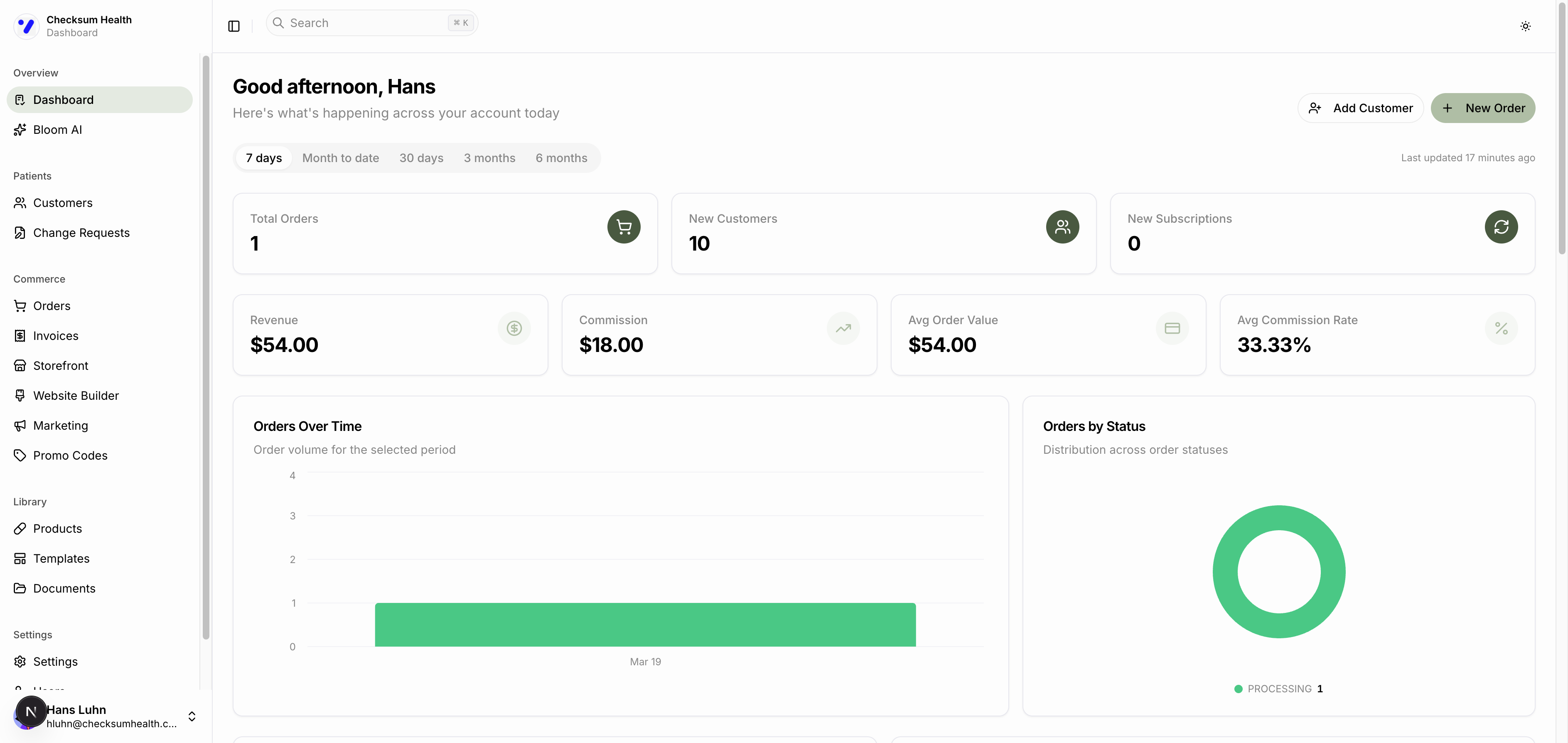
At the top of the dashboard, you will find two shortcut buttons:
- Add Customer — Jump directly to the new customer form.
- New Order — Go to the orders page to create an order.
Time Range
Use the tabs at the top to filter all dashboard data by time period:
- 7 days (default)
- Month to date
- 30 days
- 3 months
- 6 months
The "Last updated" timestamp shows when your metrics were last refreshed. Snapshots refresh automatically within about 5 minutes of new activity.
Key Metrics
The dashboard displays these summary cards:
| Metric | What It Shows |
|---|---|
| Total Orders | Number of orders placed in the selected period. |
| New Customers | Customers added during the period. |
| New Subscriptions | Subscriptions created during the period. |
| Revenue | Total revenue from customer payments. |
| Commission | Your total earnings (revenue minus your cost). |
| Avg Order Value | Average dollar amount per order. |
| Avg Commission Rate | Average commission percentage across orders. |
Click any metric card to navigate to the related page (e.g., click Total Orders to go to the Orders page).
Charts
The dashboard includes several visual charts:
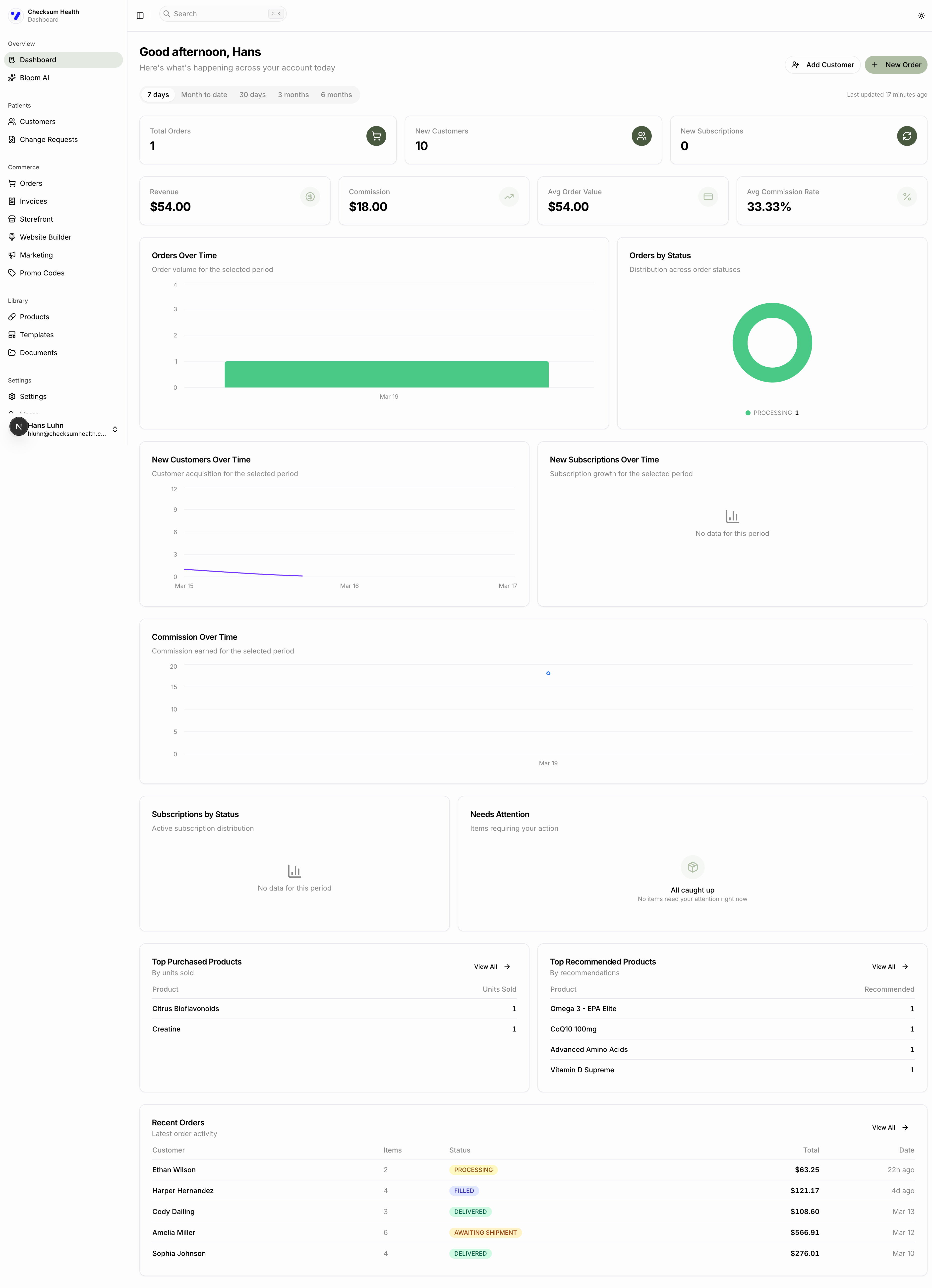
- Orders Over Time — Bar chart showing order volume by day.
- Orders by Status — Pie chart showing the distribution of order statuses (Processing, Shipped, Delivered, etc.).
- New Customers Over Time — Bar chart of customer acquisition.
- New Subscriptions Over Time — Bar chart of subscription growth.
- Commission Over Time — Bar chart of your earnings by day.
- Subscriptions by Status — Pie chart of active, paused, and cancelled subscriptions.
Needs Attention
The Needs Attention section highlights items requiring your action, such as failed payments or pending change requests. When everything is in order, it shows "All caught up."
Top Products
Two tables show your most popular products:
- Top Purchased Products — Ranked by units sold.
- Top Recommended Products — Ranked by how often they appear in protocols.
Recent Orders
The Recent Orders table shows your latest order activity with customer name, item count, status, total, and date. Click View All to go to the full orders page, or click any order row to view its details.