Viewing and Managing Orders
The Orders page gives you a complete view of all orders across your practice — from new orders being processed to completed deliveries.
Viewing the Order List
- Click Orders in the sidebar.
- You will see status summary cards and a searchable order table.
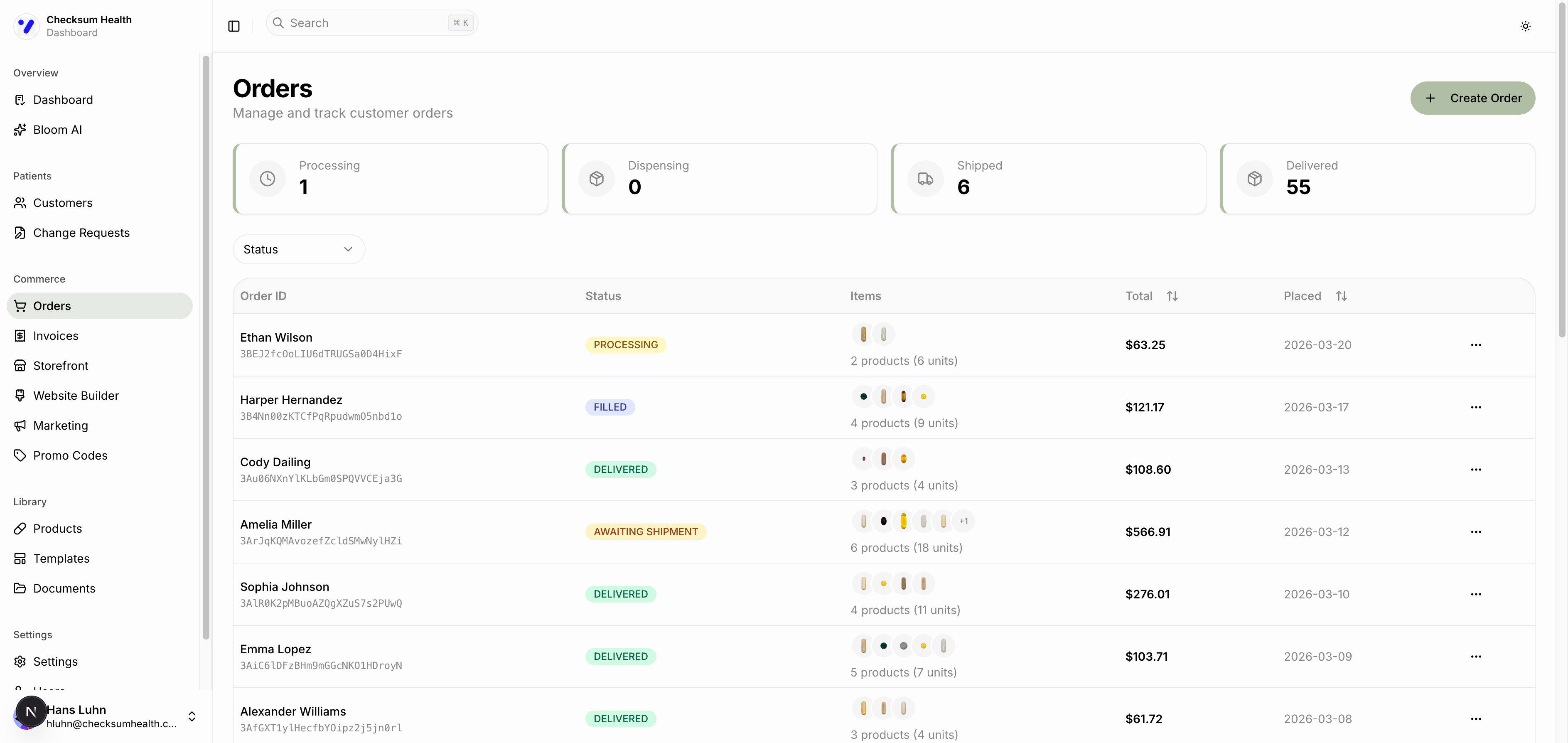
Status Cards
At the top, summary cards show the count of orders in each active status:
- Processing — Payment confirmed, order being prepared.
- Dispensing — Products being packaged.
- Shipped — In transit to the patient.
- Delivered — Successfully delivered.
Filtering
Use the Status dropdown to filter orders by a specific status.
Order Table
Each row shows:
| Column | Description |
|---|---|
| Customer | Patient name. |
| Order ID | Unique order identifier. |
| Status | Current order status badge. |
| Items | Product thumbnails with item and unit count. |
| Total | Total amount the patient was charged. |
| Placed | Date the order was created. |
Viewing Order Details
Click any order row to open the detail page.
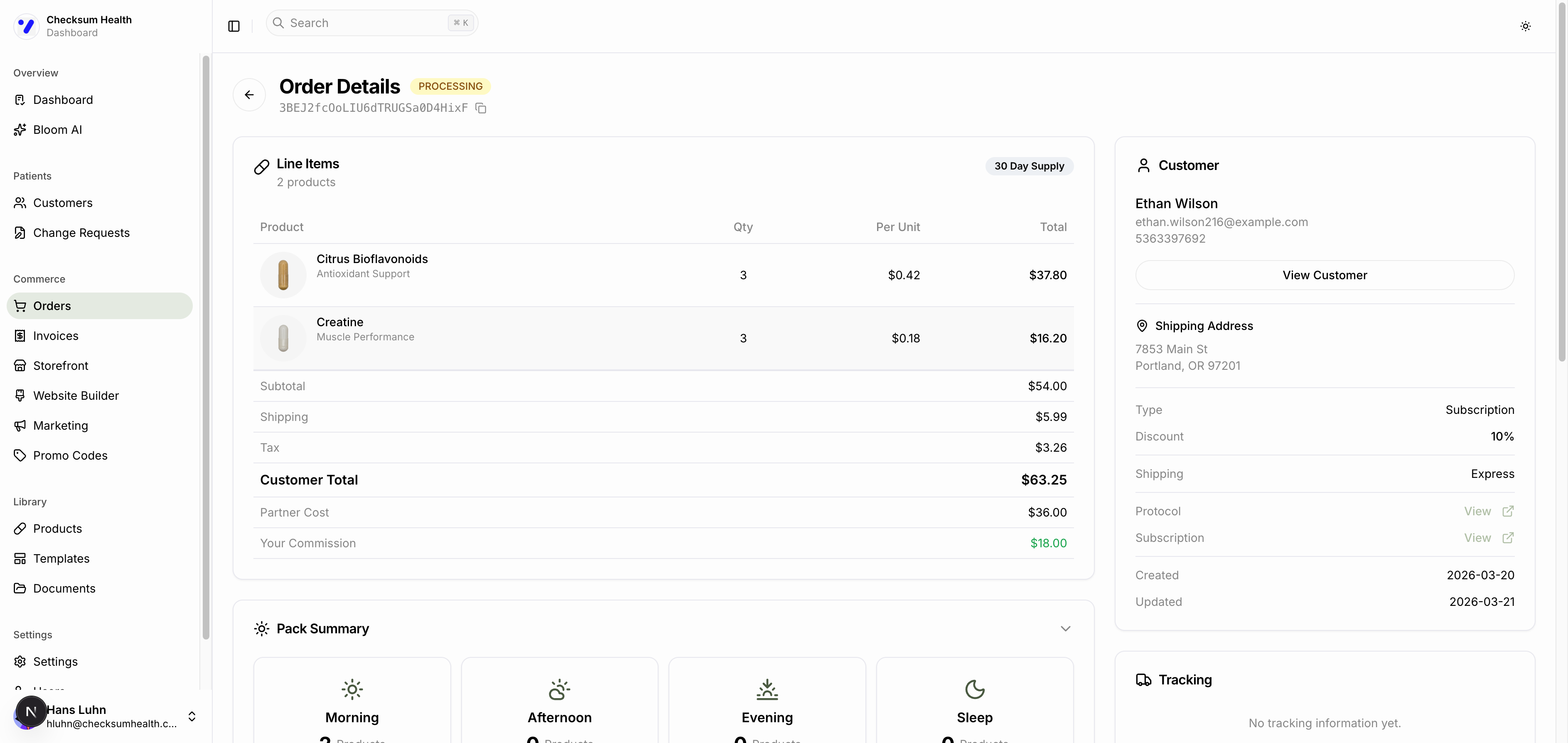
The order detail page shows:
- Line Items — Each product with image, name, category, quantity, per-unit price, and line total.
- Pricing Summary — Subtotal, Shipping, Tax, Customer Total, Partner Cost, and Your Commission.
- Pack Summary — How products are organized into daily packs (Morning, Afternoon, Evening, Sleep) with pill counts.
- Customer Info — Name, email, phone, and a link to their profile.
- Shipping Address — Where the order is being delivered.
- Order Metadata — Type (Subscription or One-time), discount applied, shipping method, linked protocol and subscription, created and updated dates.
- Tracking — Carrier tracking information once shipped.
- Documents — Any attached documents.