Uploading and Managing Documents
The Documents section lets you store and manage files like patient handouts, clinical summaries, marketing materials, and supplement fact sheets. Documents can be attached to orders so patients receive them with their shipments.
Viewing Documents
- Click Documents in the sidebar under Library.
- You will see two tabs:
- My Documents — Files you have uploaded.
- DailyStak Library — Shared resources from DailyStak.
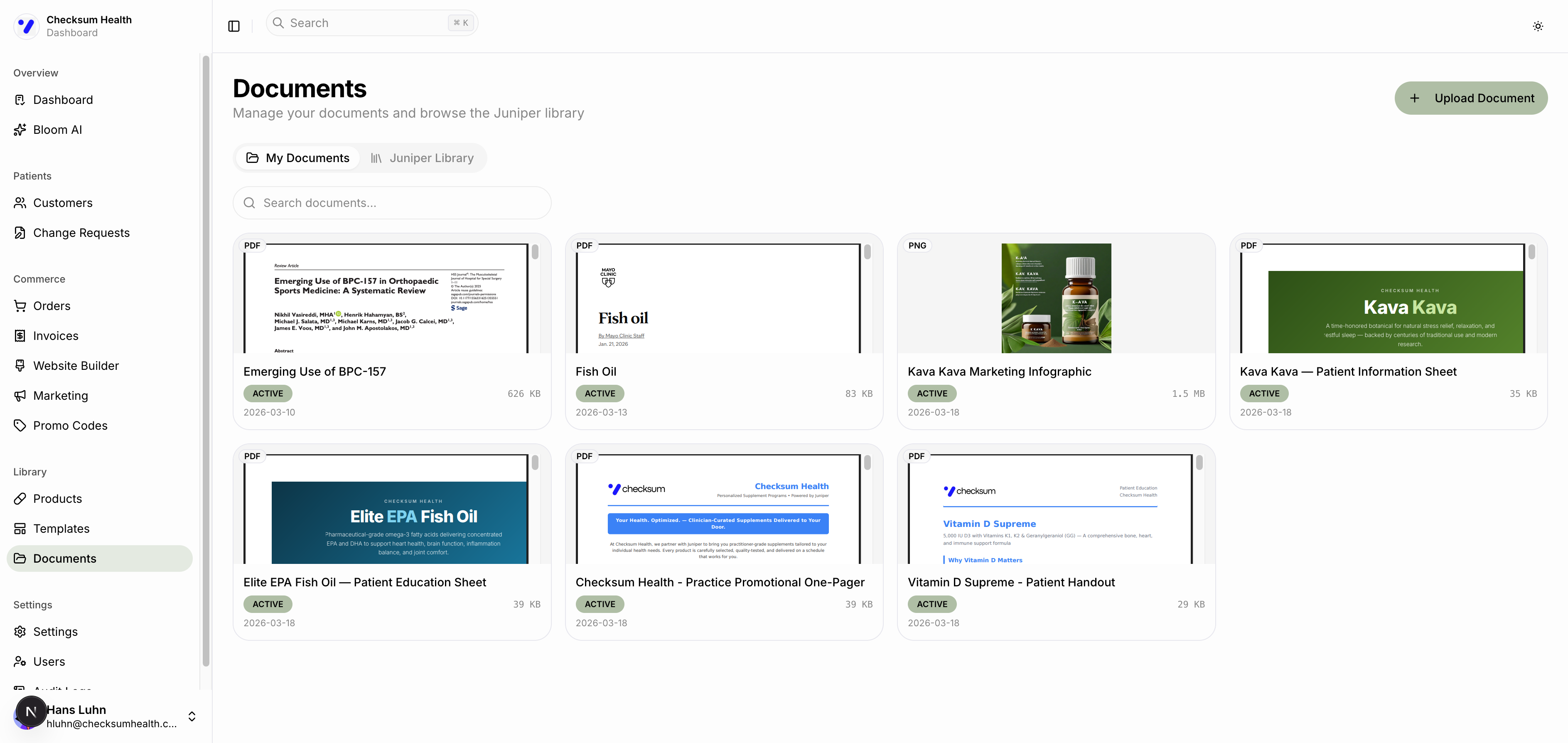
Each document shows a file type badge (PDF, PNG, etc.), name, status, file size, and upload date.
Uploading a Document
- Click the Upload Document button.
- Select a file from your computer. Supported formats include PDF, PNG, JPEG, and other common file types.
- The document will appear in your My Documents list.
Using Documents
Documents can be:
- Attached to orders — They appear on the order detail page and may be included with shipments.
- Shared with patients — Patients can view attached documents in their customer portal.
- Used as reference — Keep clinical summaries and supplement research organized in one place.
AI-Generated Documents
Ask Axis can generate documents for you, including:
- Patient education sheets for specific supplements.
- Marketing infographics.
- Clinical summaries.
- Practice promotional materials.
Try saying: "Create a patient handout for Vitamin D Supreme" in Ask Axis.
Managing Documents
From the three-dot menu on any document, you can:
- View — Open the document.
- Download — Save a copy to your computer.
- Delete — Remove the document.