Building Your Website
The Website Builder lets you create a professional marketing website for your practice with a visual drag-and-drop editor. No coding required.
Getting Started
- Click Website Builder in the sidebar under Commerce.
- If this is your first time, you may be asked to select a template as a starting point.
- The visual editor opens with your website preview.
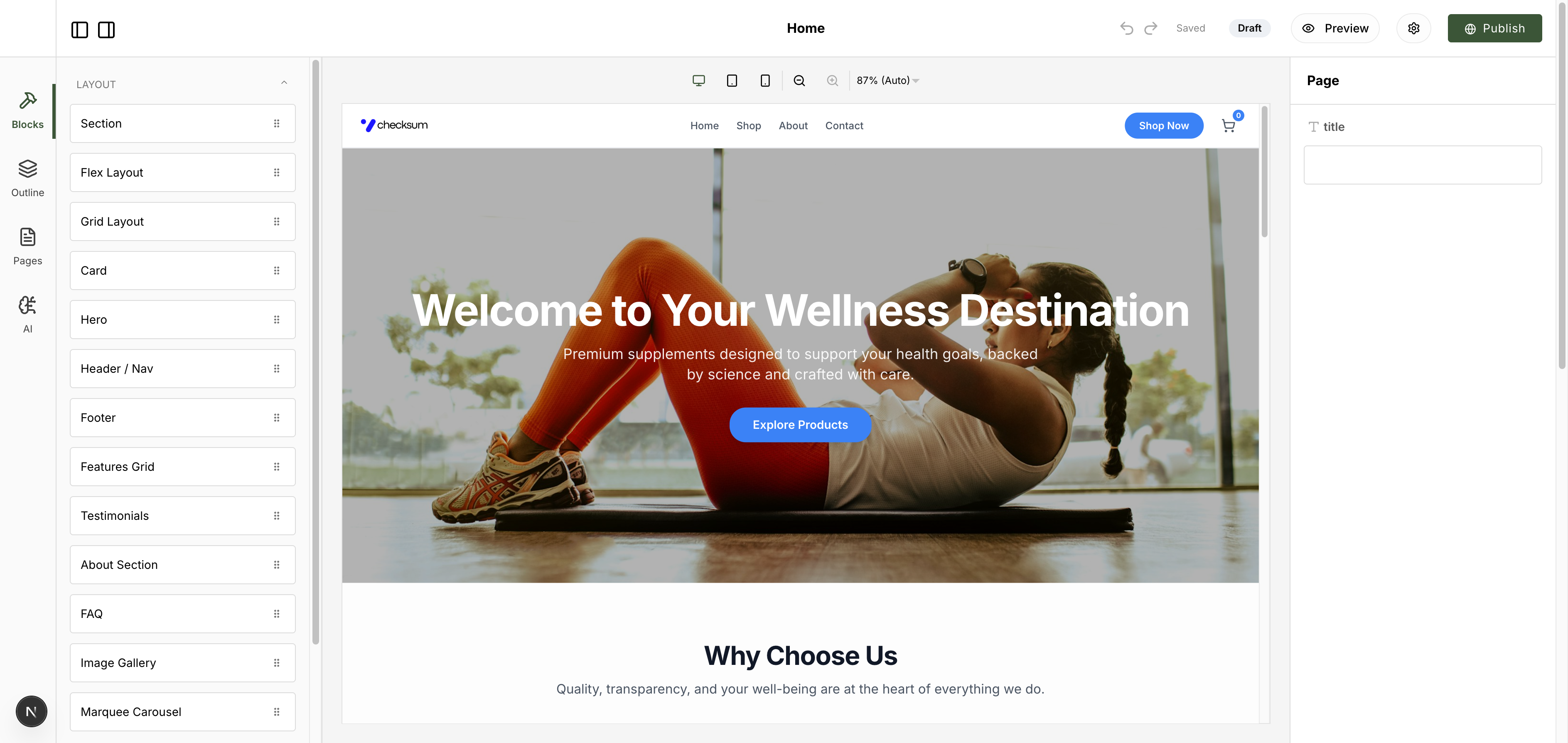
The Editor
The editor has three main areas:
Left Sidebar — Blocks
Drag blocks from the sidebar into your page to add content:
| Block | Description |
|---|---|
| Hero | Large banner with headline and call-to-action. |
| Features Grid | Highlight key selling points in a grid layout. |
| Testimonials | Customer quotes and reviews. |
| About Section | Tell your practice's story. |
| FAQ | Frequently asked questions accordion. |
| Image Gallery | Photo grid or carousel. |
| Header / Nav | Top navigation bar. |
| Footer | Bottom section with links and info. |
| Section | Generic content section. |
| Flex / Grid Layout | Custom layouts for advanced positioning. |
| Card | Individual content cards. |
| Marquee Carousel | Scrolling content strip. |
Additional block categories include E-Commerce, Content, and Marketing & Trust.
Center — Live Preview
A real-time preview of your website. Click any block in the preview to select and edit it. Use the viewport switcher at the bottom to preview Desktop, Tablet, and Mobile views.
Top Bar
- Undo / Redo — Step back or forward through changes.
- Saved indicator — Shows when your changes are saved.
- Draft / Published status — Your current publishing state.
- Preview — Open a full-screen preview.
- Publish — Make your changes live.
Managing Pages
Click the Pages tab in the left sidebar to manage multiple pages (Home, About, Contact, etc.). Each page has its own set of blocks and content.
AI Content Generation
Click the AI tab in the left sidebar to use Ask Axis for generating website content. You can ask it to write hero copy, generate product descriptions, or even import content from an existing website.
Publishing
- Make your changes in the editor.
- Click Publish in the top bar.
- Your website goes live at your storefront URL.
Until you publish, changes remain in Draft status and are not visible to visitors.