Creating Marketing Campaigns
The Marketing page lets you create email campaigns to engage your patients — from one-time announcements to automated drip sequences.
Viewing Campaigns
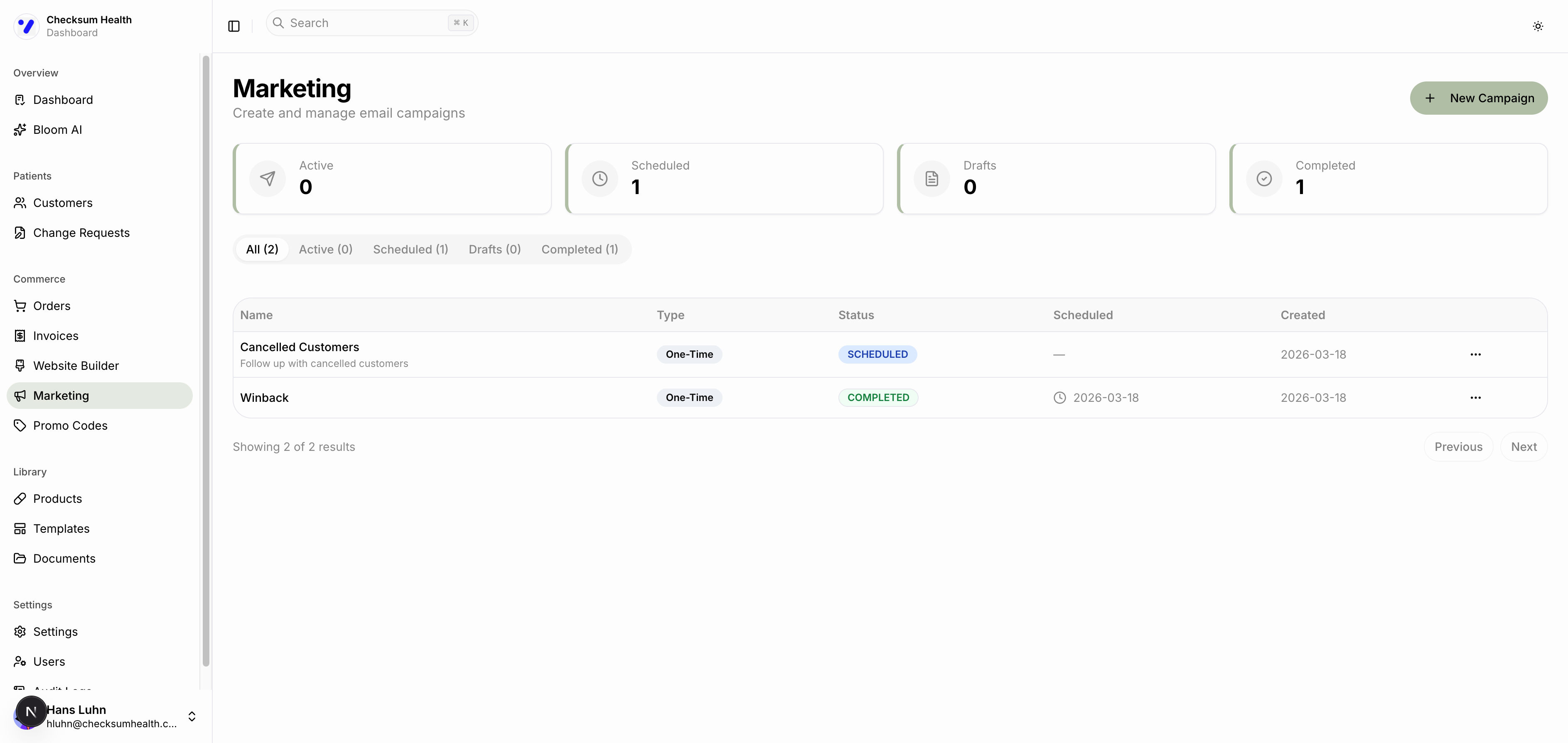
- Click Marketing in the sidebar under Commerce.
- Status cards show: Active, Scheduled, Drafts, and Completed counts.
- Use the tabs to filter: All, Active, Scheduled, Drafts, Completed.
Creating a Campaign
- Click the New Campaign button.
- Choose a campaign type:
- One-Time — A single email sent to selected recipients.
- Drip — An automated sequence of emails sent over time.
- Fill in the campaign details: name, description, content, and schedule.
- Select your recipients.
- Save as draft or schedule for sending.
Campaign Statuses
| Status | Description |
|---|---|
| Draft | Not yet scheduled or sent. |
| Scheduled | Set to send at a future date. |
| Sending | Currently being delivered. |
| Active | Drip campaign in progress. |
| Paused | Temporarily stopped. |
| Completed | All emails have been sent. |
| Cancelled | Campaign was stopped before completion. |
Managing Campaigns
From the three-dot menu on any campaign, you can:
- Edit — Update campaign content or schedule.
- View — See campaign details and performance.
- Delete — Remove the campaign.