Creating and Managing Promo Codes
Promo codes give patients a discount at checkout. Use them for promotions, patient appreciation, or new customer acquisition.
Viewing Promo Codes
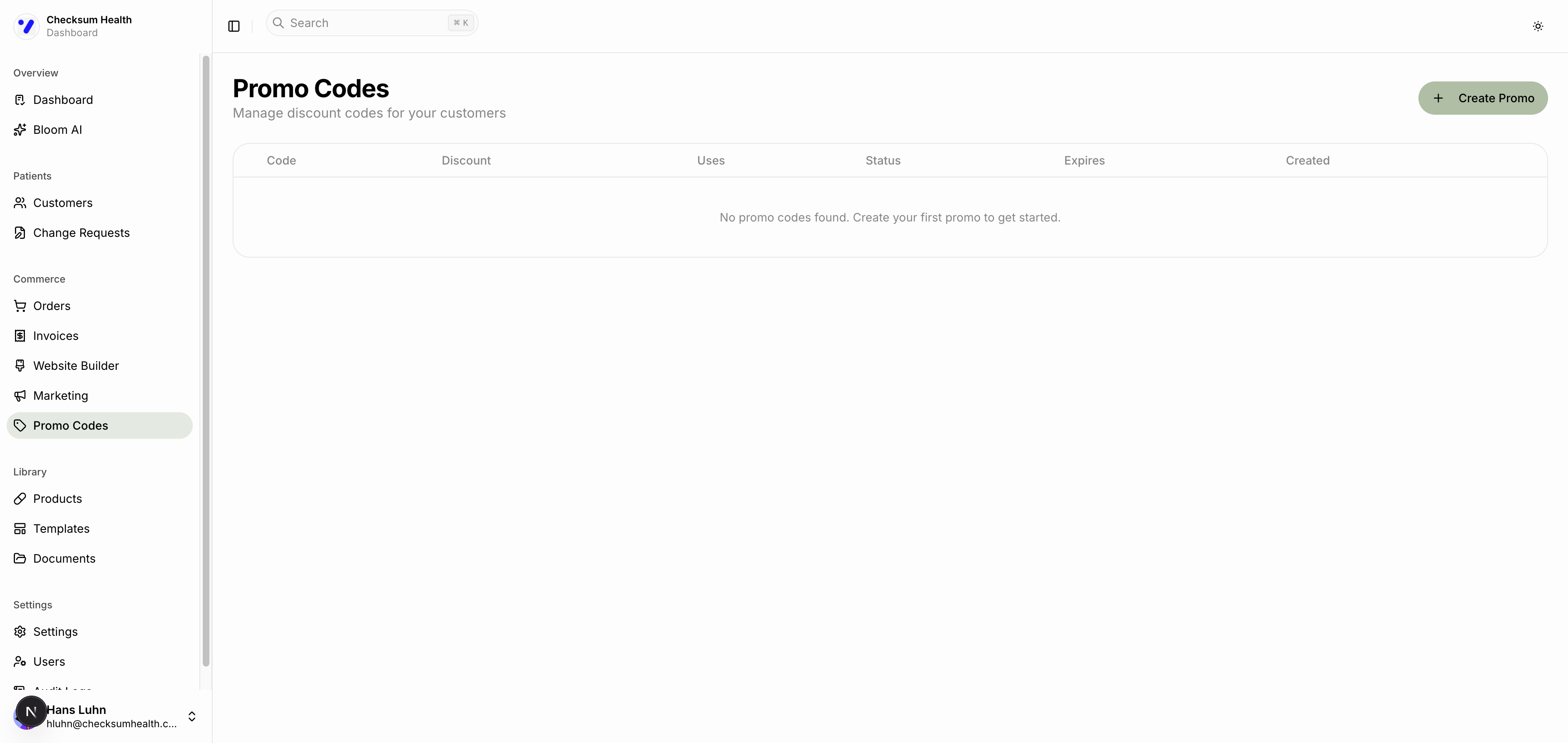
- Click Promo Codes in the sidebar under Commerce.
- You will see a table of all promo codes with their status and usage.
Creating a Promo Code
- Click the Create Promo button.
- Fill in the details:
| Field | Description |
|---|---|
| Code | 3–20 alphanumeric characters. Case-insensitive. Make it memorable (e.g., WELCOME20). |
| Discount | Percentage off MSRP. |
| Usage Limit | Maximum total redemptions (optional). |
| Per-Customer Limit | Maximum uses per customer (typically 1). |
| Expiration Date | When the code stops working (optional). |
- Click Create.
How Promo Codes Work at Checkout
When a patient enters a promo code at checkout:
- The system validates the code is active, not expired, and within usage limits.
- The discount is applied: the patient gets the better of the promo discount or their existing customer discount — not both combined.
- The promo redemption is recorded.
Promo Code Statuses
| Status | Description |
|---|---|
| Active | Code is available for use. |
| Inactive | Code has been deactivated. |
| Expired | Past the expiration date. |
| Maxed Out | Usage limit reached. |
Managing Promo Codes
- Activate/Deactivate — Toggle a code on or off.
- View redemptions — See which customers used the code and when.
- Delete — Remove the code entirely.
tip
Use memorable, short codes for campaigns (e.g., SPRING25, NEWPATIENT). Set expiration dates to create urgency.