Viewing and Editing Customers
The Customers page is where you manage all of your patient records.
Viewing the Customer List
- Click Customers in the sidebar.
- You will see a table of all your customers.
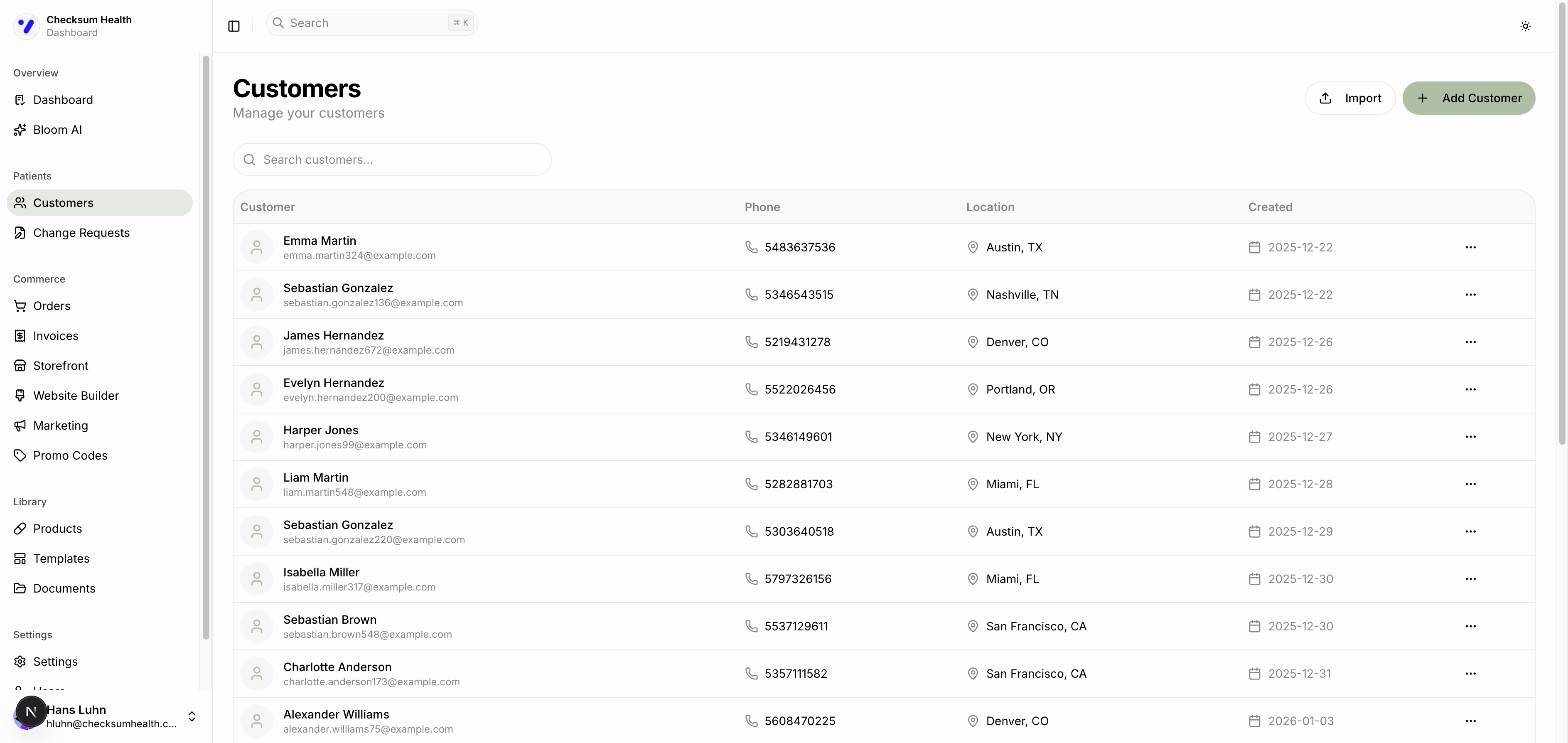
The table shows:
| Column | Description |
|---|---|
| Customer | Name and email address. |
| Phone | Phone number, if provided. |
| Location | City and state from their shipping address. |
| Created | Date the record was created. |
Searching
Use the Search customers field at the top to filter by name or email.
Pagination
The table shows 20 customers per page. Use the Previous and Next buttons to navigate.
Viewing Customer Details
Click any customer row to open their detail page. Here you can see their full profile, shipping address, order history, and active subscriptions.
Editing a Customer
- On the customer list, click the three-dot menu (⋮) on the customer's row.
- Select Edit.
- Update the fields you need to change.
- Click Save Changes.
You can also edit from the customer detail page.
Other Actions
The three-dot menu on each customer row also lets you:
- View — Open the customer detail page.
- Create Order — Start a new order for this customer.
- Delete — Remove the customer record.
caution
Deleting a customer cannot be undone. Active subscriptions associated with the customer should be cancelled first.