Adding a New Customer
Customers are your patients. You need to add a customer before you can create a protocol or place an order for them.
Steps
- Click Customers in the sidebar.
- Click the Add Customer button in the top right.
- Fill in the customer details.
- Click Create Customer.
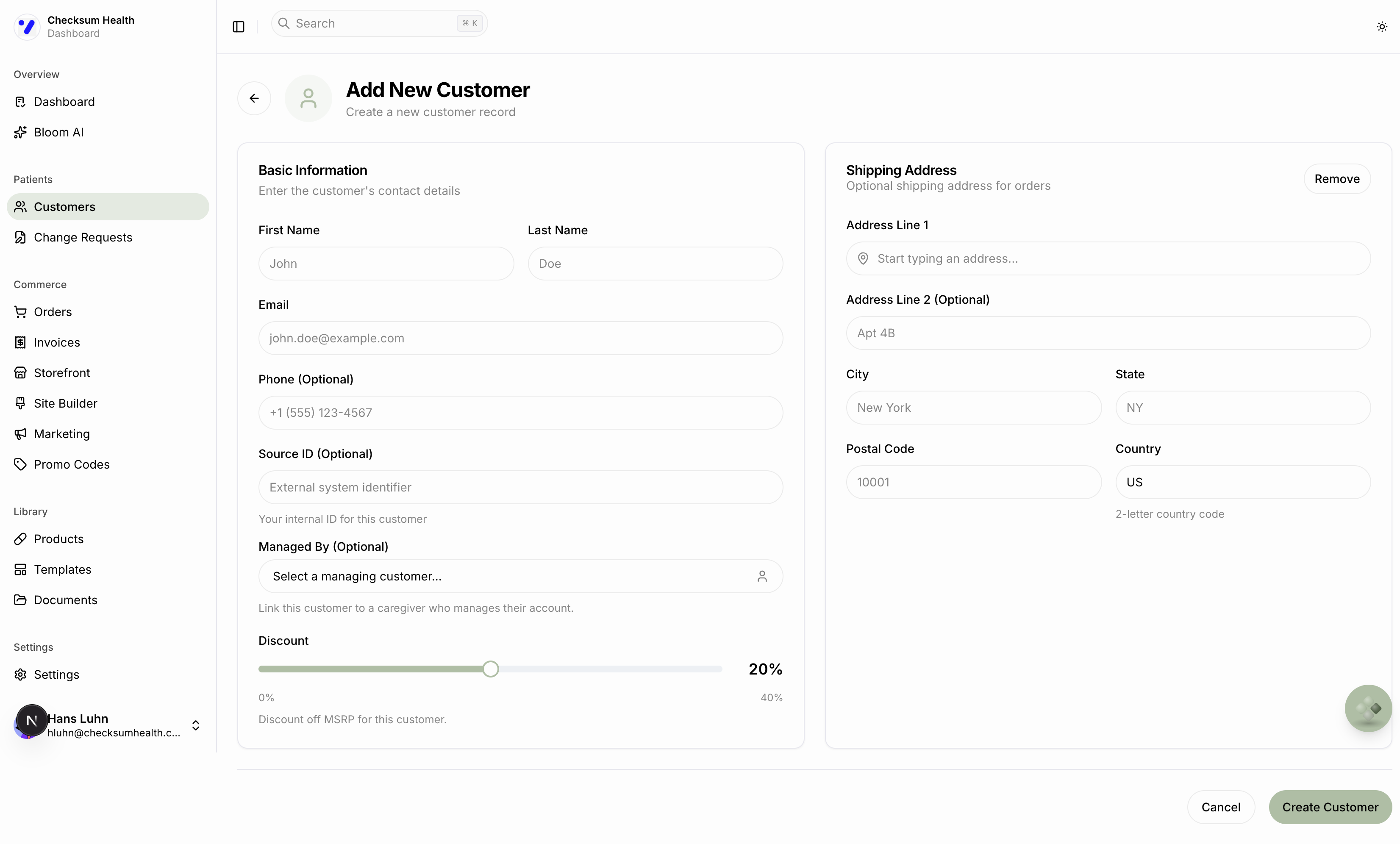
Form Fields
Basic Information
| Field | Required | Description |
|---|---|---|
| First Name | Yes | Patient's first name. |
| Last Name | Yes | Patient's last name. |
| Yes | Must be unique within your practice. Used for checkout links and notifications. | |
| Phone | No | Patient's phone number. |
| Source ID | No | Your internal ID for this patient (e.g., from your EHR). |
| Managed By | No | Link this customer to a caregiver who manages their account. |
Discount
The discount slider sets the percentage off MSRP this customer pays. It defaults to your account-wide default (set in Settings > Pricing). You can override it per customer.
- Slide left (0%) — patient pays full MSRP.
- Slide right (up to your partner discount) — patient pays less, but your commission is also lower.
Shipping Address
The shipping address is optional when creating the customer, but it is required before placing an order. Fields include: Address Line 1, Address Line 2, City, State, Postal Code, and Country.
tip
You can also create customers through Ask Axis by saying something like "Create a new customer named Jane Smith with email jane@example.com."